
Built for first responders
Know what's on board.Access critical response information.
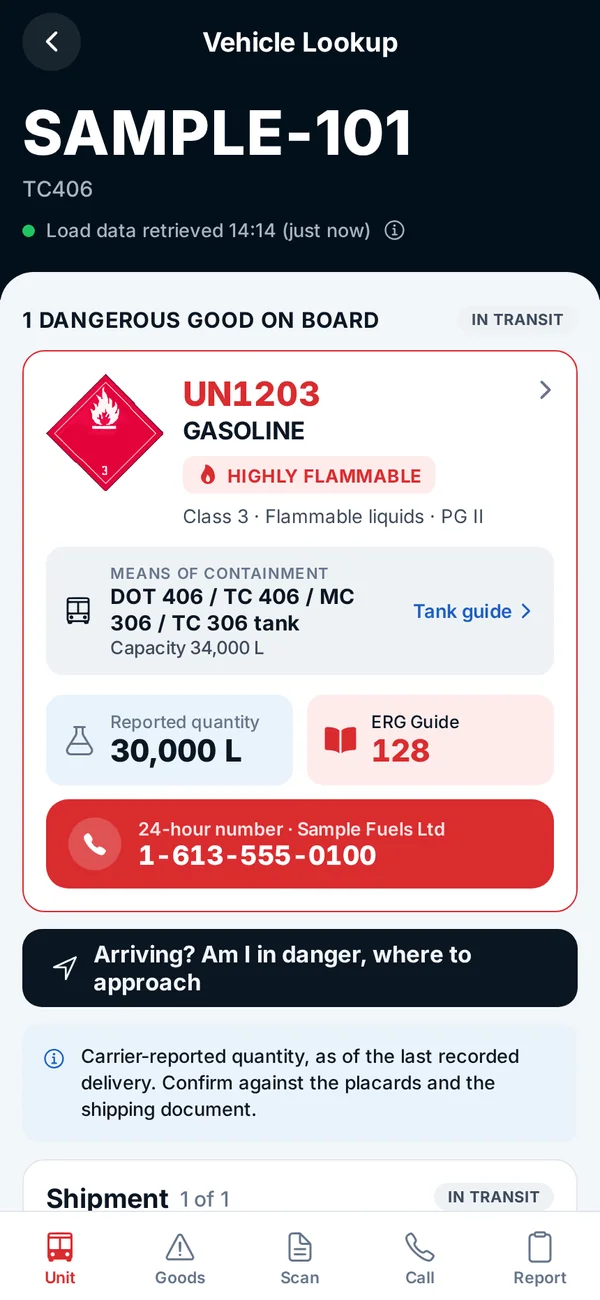
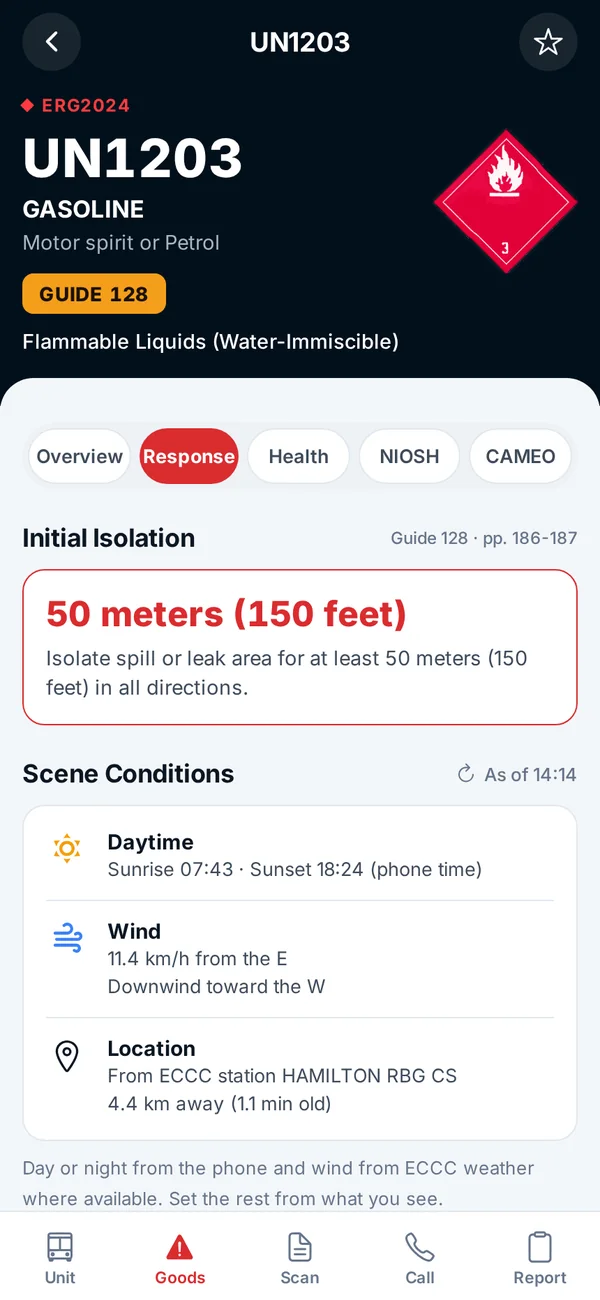
HM Intel gives firefighters, HAZMAT teams and other first responders access to dangerous goods shipment details, shipping documents, Safety Data Sheets and emergency response guidance for active shipments connected to DG Vault.
- Shipment details
- SDS
- ERG guidance
- Emergency contacts
Three ways to access shipment information.
Each starts with the unit number on the truck or trailer. No account or login is needed.
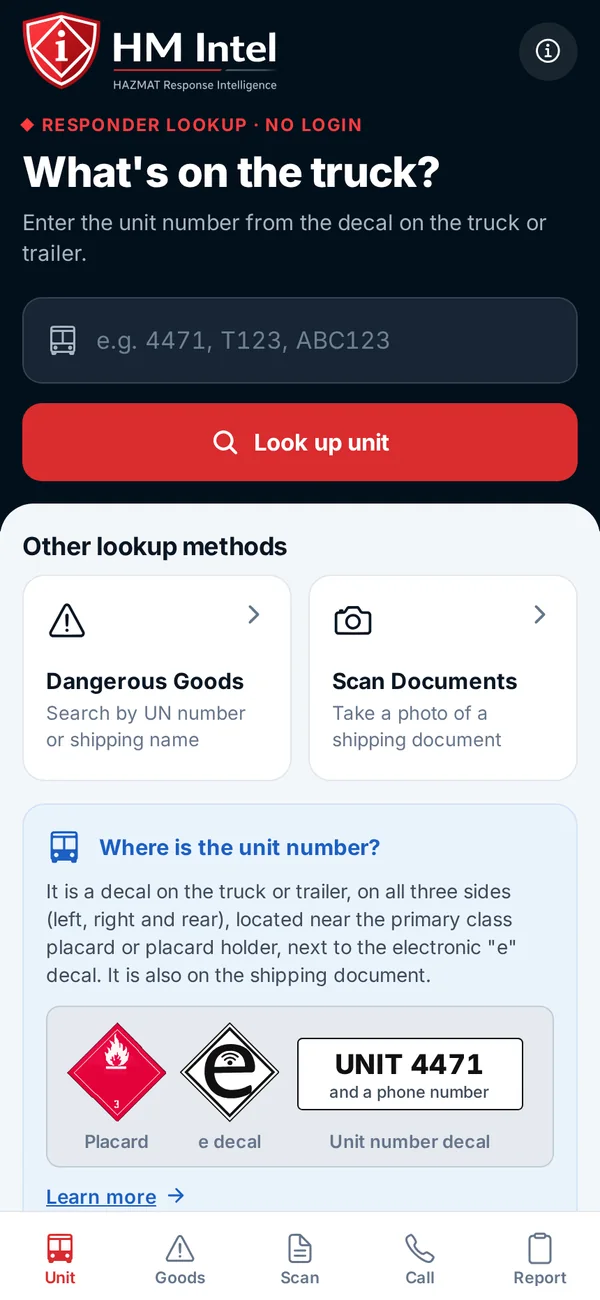
HM Intel app
Look up a unit and view available shipment details and response information.
Text
Send the unit number to the number displayed on the vehicle decal.
Call
Call the number displayed on the vehicle decal to retrieve shipment information.
Critical information.
Clearly presented.
Get the details you need to respond safely and effectively, including product information, shipment documents, quantities and emergency guidance.
Product and UN number
Identify the product by its shipping name and UN number.
Classification
See the hazard class and packing group of each dangerous good on board.
Reported quantity
See the quantity on board as last reported by the carrier, with the time it was retrieved.
Shipping documents and SDS
Open the shipping document and any Safety Data Sheets on file for the shipment.
ERG guidance
View the Emergency Response Guidebook guide and initial isolation distance.
Emergency contacts
Reach the shipment's 24-hour number and emergency response centres such as CANUTEC.
Find the unit number. Retrieve the shipment.
Locate the unit number
Find the unit number and the contact number on the vehicle decal. The unit number decal sits near the dangerous goods placard and the electronic "e" decal, and the unit number is also on the shipping document.
Enter, text or call
Enter the unit number in the HM Intel app, or text or call it to the number on the decal.
Review available information
View the shipment details, shipping document and SDS, ERG guidance and emergency contacts for the active shipment.
Put HM Intel in your team's hands.
See how your department can locate shipment information and use HM Intel's dangerous goods response tools.
Or email info@ctsolutions.ca.